Color Palette Customization
By default, Curtain automatically pick a color from a pastel color palette for most of its visualization. You can access this through Plot-> Customize Color Palette.
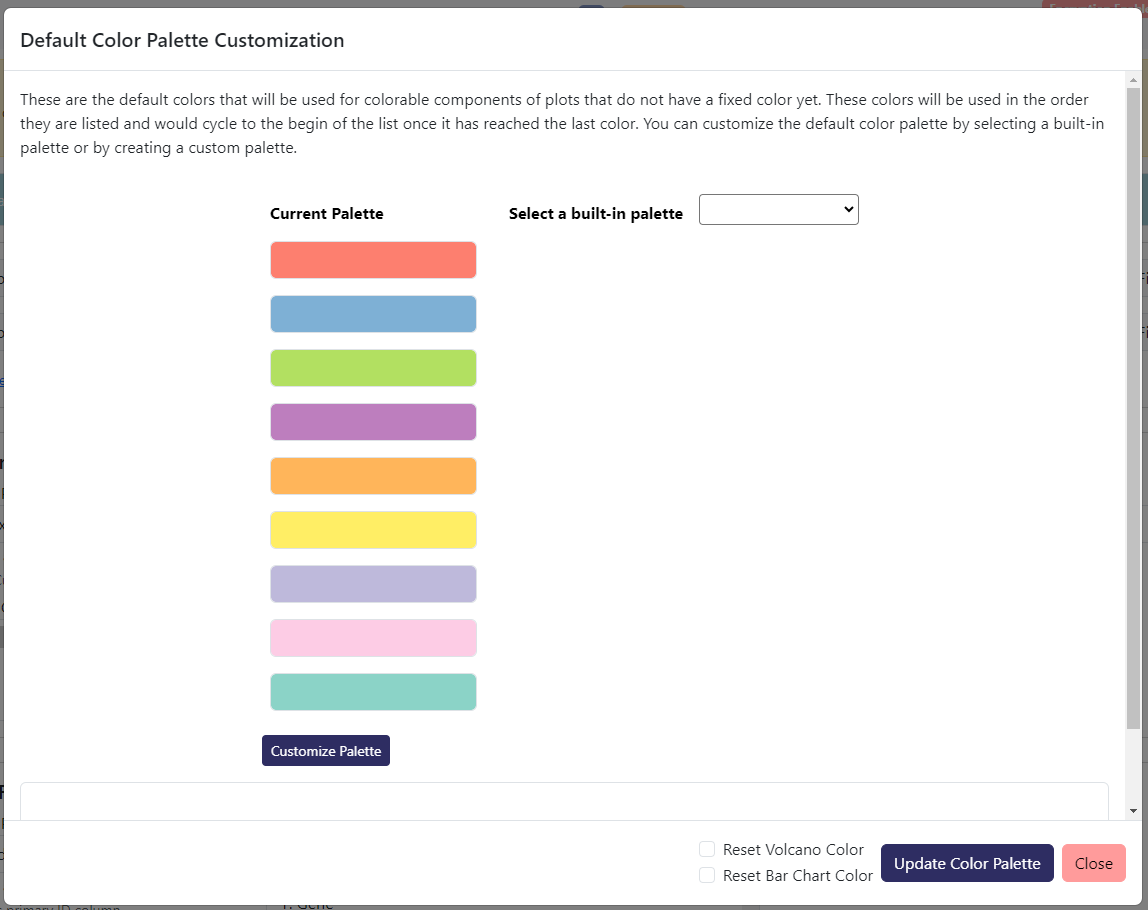
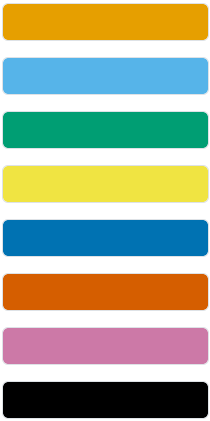
Here you can change the color palette automatically used by Curtain. You can see a set of currently used color in the Current Palette section. If you want to change the color palette, you can select one of the built-in palette under Select a built-in palette dropdown or click Customize Palette to give you the ability to manually changing the colors as well as adding how many colors that you want into the rotation. The following are the available built-in palettes:
Pastel
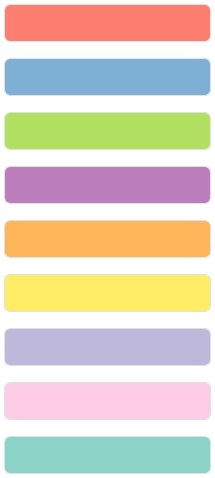
Retro
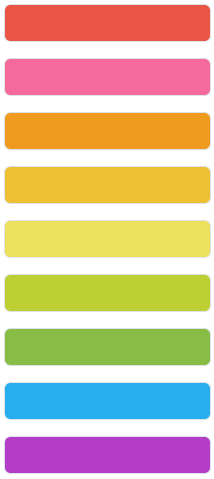
Solid
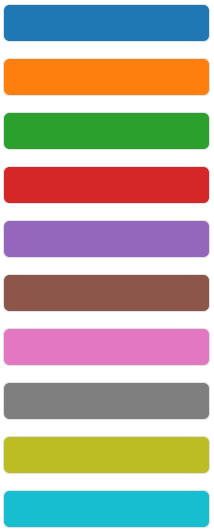
Gradient red to green
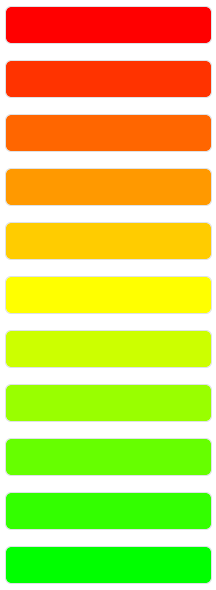
Bright (Color blind friendly)
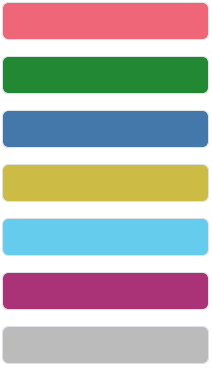
Muted (Color blind friendly)
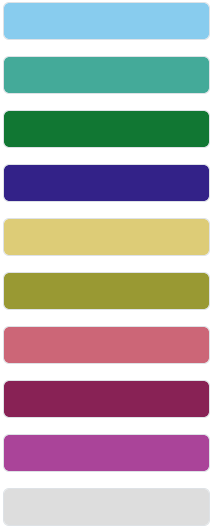
Light (Color blind friendly)
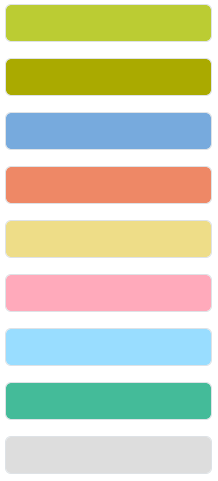
Okabe Ito
If you want to copy a particular color palette from one curtain session to another, you can do so by clicking Copy Current Palette button. This will copy a JSON string containing the colors in hex values. You can then paste into the box under the Customize Palette button and then click Parse Custom Palette Config.
If you want to reset the color of the volcano plot before update, you can check the Reset Volcano Color checkbox. If you want to reset the color of the bar charts and violin plots before update, you can check the Reset Bar Chart Color checkbox.
After modifying any of these settings, you can update the color palette by clicking Update Color Palette.